As we have previously studied that datagridview is used for display rows and columns of data in a grid format in windows form. Mostly data are previously defined which are to be shown in datagridview. Sometimes we have to change the data on basis of some conditions.
In previous post we have learnt to bind a datagridview with search option and in else case all the data from database will bind to datagridview in C# language. In this post we will learn to bind datagridview with the selected index changed event of combobox in C#.
The selection changed event of combobox occurs when the value of selected index property changes. We are going to change our data of datagridview according to that changed value.
Let’s create a student class, which will be used to bind our datagridview, having some properties like below:
 Go for example
In previous post we have learnt to bind a datagridview with search option and in else case all the data from database will bind to datagridview in C# language. In this post we will learn to bind datagridview with the selected index changed event of combobox in C#.
The selection changed event of combobox occurs when the value of selected index property changes. We are going to change our data of datagridview according to that changed value.
Let’s create a student class, which will be used to bind our datagridview, having some properties like below:
public class Student
{
public string Name { get; set; }
public int Age { get; set; }
public string Address { get; set; }
public string Branch { get; set; }
}
Create a new list of student that will be the data source of datagridview and insert some records in that list having branch CS or IT as I have inserted in my example using C# language. Set this list as a data source of datagridview.
dataGridView1.DataSource = studentList;
Now when we run this project all the records will be shown in datagridview. We want to change the data of datagridview according to selection changed event. So write the below code in selection changed event of combobox
if (comboBox1.SelectedItem != null)
{
string branch = comboBox1.Text;
var students = studentList.Where(a => a.Branch.Equals(branch));
dataGridView1.DataSource = students.ToList();
}
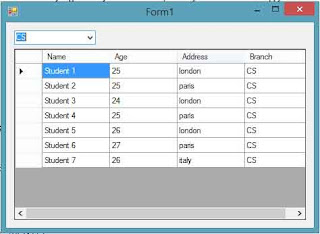
Run this project now and change the selection value of combobox to CS and we will show the data of datagridview have been changed as following image:

Change the selection value to IT and the data will be changed as following image:


